> For the complete documentation index, see [llms.txt](https://docs.rillet.com/EjmEP4KZ9BVp9j2ho4Mh/llms.txt). Markdown versions of documentation pages are available by appending `.md` to page URLs; this page is available as [Markdown](https://docs.rillet.com/EjmEP4KZ9BVp9j2ho4Mh/accounts-receivable/invoicing-and-payments/send-invoices.md).
# Send Invoices
Rillet lets you send invoices to your customers by email, mark them as sent manually, or send them in bulk, directly from the platform. Invoices that are due today or earlier and have not yet been sent are grouped under **Needs Action > Invoices to be sent** in the Launchpad. Once an invoice is sent, its status changes from **Unbilled** to **Unpaid** until payment is received.
### Invoice Statuses
Rillet uses invoice statuses to indicate the current stage of an invoice in the billing and payment process.
| Status | Description |
| ------------ | --------------------------------------------------------------------------- |
| **Unbilled** | An invoice that has been created but has not yet been sent to the customer. |
| **Unpaid** | An invoice that has been sent to the customer but has not yet been paid. |
### Send an Invoice by Email
Follow these steps to send an invoice through the platform:
1. Go to **Launchpad** and select **Invoices to be sent** under **Needs Action** to view all unsent invoices.
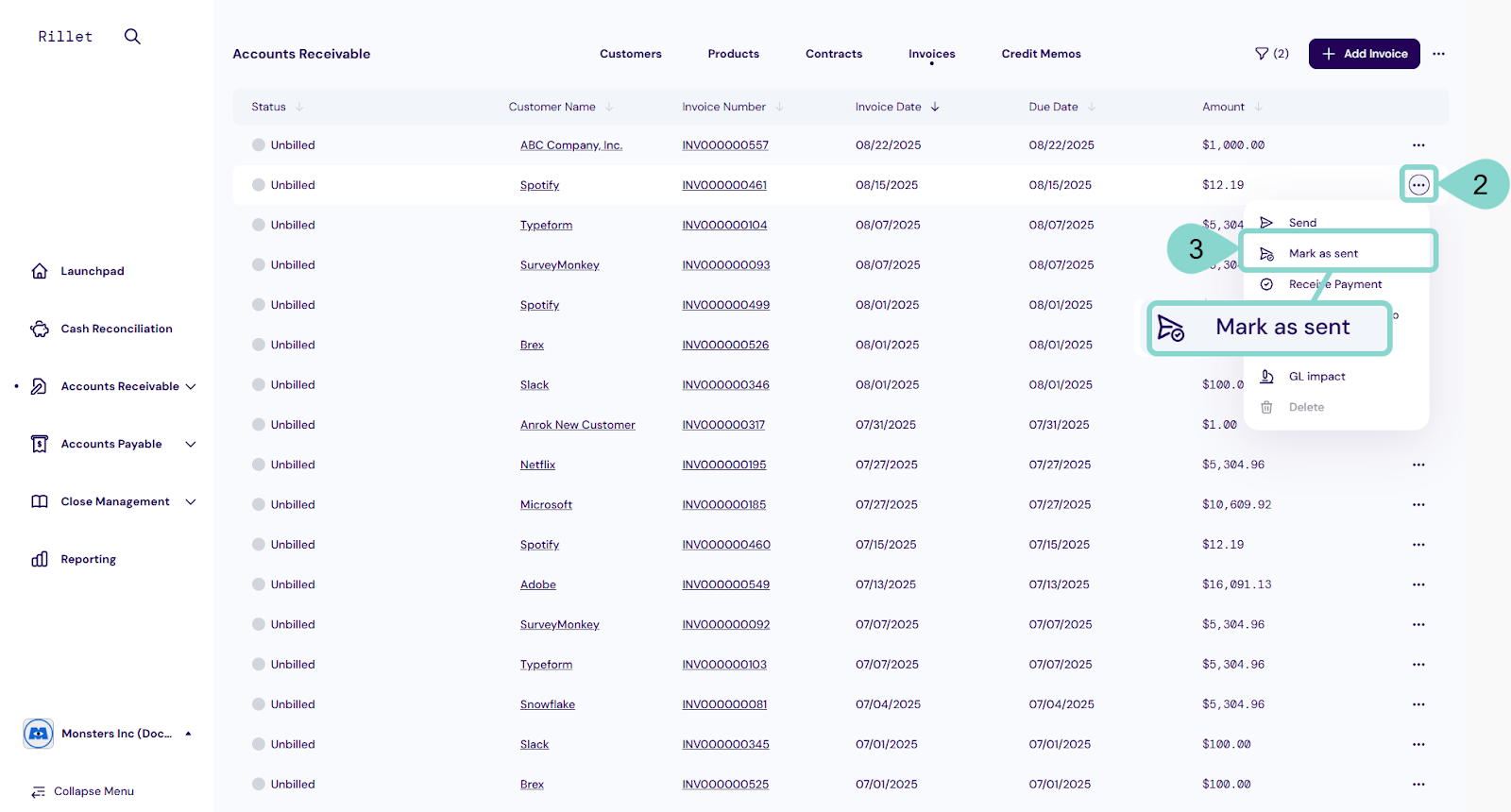
2. Find the invoice you want to send and click the **three-dot menu** in the far-right column.
3. Select **Send**.
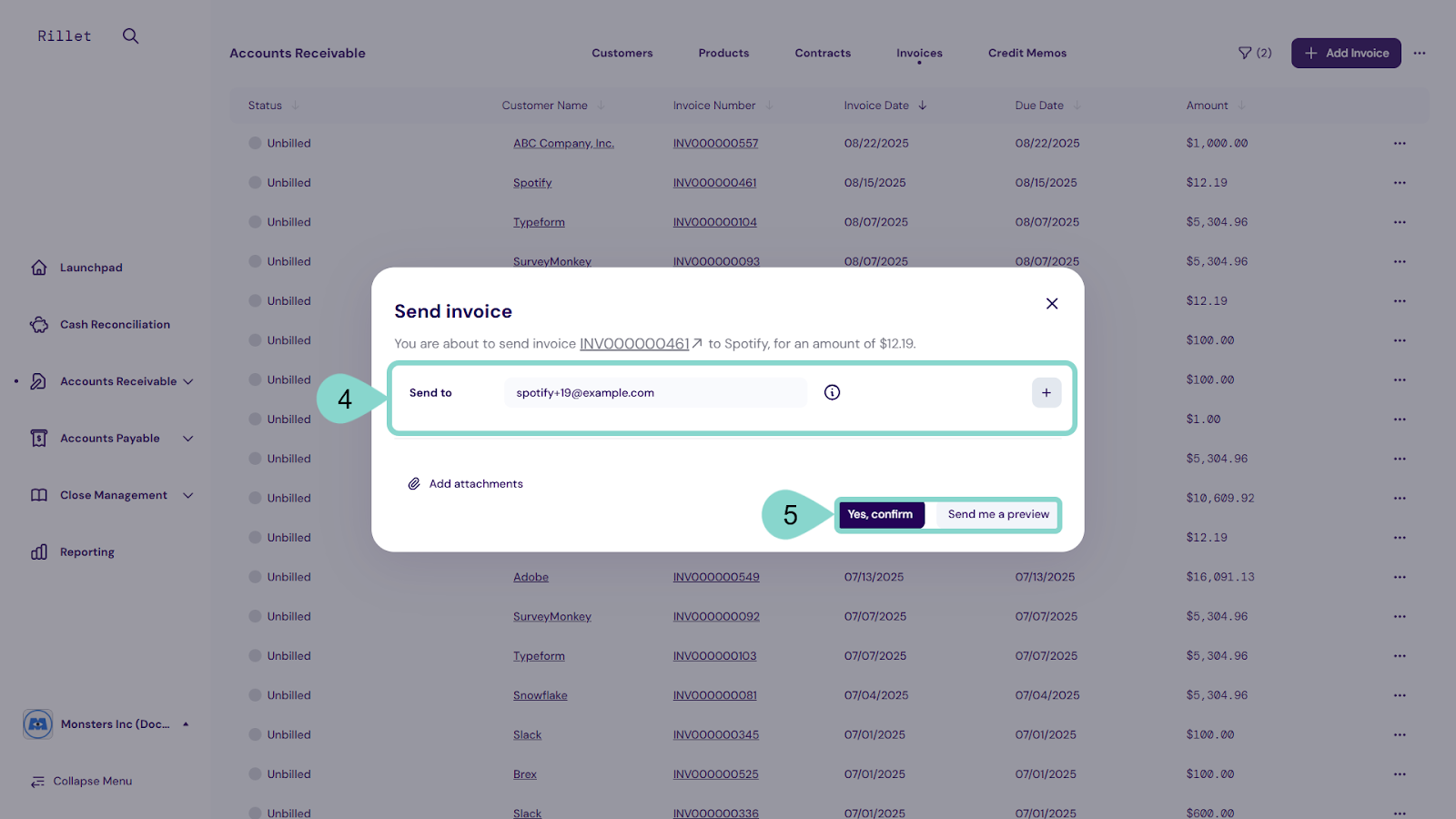
4. Review or add recipient emails:
* **To:** main recipient.
* **CC:** recipients copied on the email.
* **BCC:** recipients copied without visibility to others.
5. Choose one of the following:
* **Send me a preview:** receive a test email.
* **Yes, confirm:** send the invoice to the customer.
### **Mark an Invoice as Sent Manually**
Take these steps to mark an invoice as sent manually:
1. Go to **Launchpad** and select **Invoices to be sent** under **Needs Action** to view all unsent invoices.
2. Find the invoice you want to mark as sent and click the **three-dot icon**.
3. Select **Mark as Sent**.
{% hint style="info" %} **Note:**
Ensure the customer has at least one contact email before sending an invoice. To add a contact, go to the customer’s profile overview.
{% endhint %}
Invoices marked as sent manually will not be eligible for autopayment, and reminders will not be sent.
### Send or Mark Invoices as Sent in Bulk
Complete these steps to send or mark invoices as sent in bulk:
1. Go to **Launchpad** and select **Invoices to be sent** under **Needs Action** to view all unsent invoices.
2. Select the checkbox at the top of the table to select all invoices at once.
3. Use the bulk action bar at the bottom of the page to choose **Send** or **Mark as sent**.
{% hint style="info" %} **Note:**
Bulk actions are limited to 50 invoices at a time. Only invoices eligible for the action (for example, overdue or unbilled) can be selected. Invoices with nothing to send, such as fully credited ones, are automatically excluded from the selection.
{% endhint %}
### See Also
To learn more about invoicing actions in **Rillet**, review these articles:
* [**Create a New Invoice**](/EjmEP4KZ9BVp9j2ho4Mh/accounts-receivable/invoicing-and-payments/create-a-new-invoice.md)
* [**Custom Email for Invoicing**](/EjmEP4KZ9BVp9j2ho4Mh/accounts-receivable/invoicing-and-payments/custom-email-for-invoicing.md)
* [**Turn Off Automatic Reminders**](/EjmEP4KZ9BVp9j2ho4Mh/accounts-receivable/invoicing-and-payments/turn-off-automatic-reminders.md)
---
# Agent Instructions
This documentation is published with GitBook. GitBook is the documentation platform designed so that both humans and AI agents can read, navigate, and reason over technical content effectively. Learn more at gitbook.com.
## Querying This Documentation
If you need additional information that is not directly available in this page, you can query the documentation dynamically by asking a question.
Perform an HTTP GET request on the current page URL with the `ask` query parameter, and the optional `goal` query parameter:
```
GET https://docs.rillet.com/EjmEP4KZ9BVp9j2ho4Mh/accounts-receivable/invoicing-and-payments/send-invoices.md?ask=&goal=
```
`ask` is the immediate question: it should be specific, self-contained, and written in natural language.
`goal` is optional and describes the broader end goal you are ultimately trying to accomplish on behalf of the user. GitBook uses it to tailor the answer towards what is most useful for that goal.
The response will contain a direct answer to the question and relevant excerpts and sources from the documentation.
Use this mechanism when the answer is not explicitly present in the current page, you need clarification or additional context, or you want to retrieve related documentation sections.