> For the complete documentation index, see [llms.txt](https://docs.rillet.com/EjmEP4KZ9BVp9j2ho4Mh/llms.txt). Markdown versions of documentation pages are available by appending `.md` to page URLs; this page is available as [Markdown](https://docs.rillet.com/EjmEP4KZ9BVp9j2ho4Mh/reporting/create-and-use-reporting-groups.md).
# Create and Use Reporting Groups
Reporting groups let you view financial statements in **Rillet** for an arbitrary set of subsidiaries side by side, independent of how those subsidiaries actually roll up in your organization's consolidation hierarchy. Group entities that do not share a parent, or split a single entity's activity into segments such as Services or Software, then compare them directly on the **Income Statement**, **Balance Sheet**, or **Cashflow Statement**.
### Create a Reporting Group
Follow these steps to create a reporting group:
1. Click your organization name at the bottom of the left sidebar.
2. Select **Organization settings**.
3. Open **Reporting** in the Settings sidebar.
4. Click **Add reporting group**.
5. Enter a name for the group.
6. Select the subsidiaries to include under **Members**, excluding any elimination subsidiaries, which cannot be added to a reporting group.
7. Click **Save** to create the group.
The group appears in the Reporting Groups list with its name and member subsidiaries, ready to use as a filter on your reports.
### Apply a Reporting Group to a Report
Complete these steps to filter a report by reporting group:
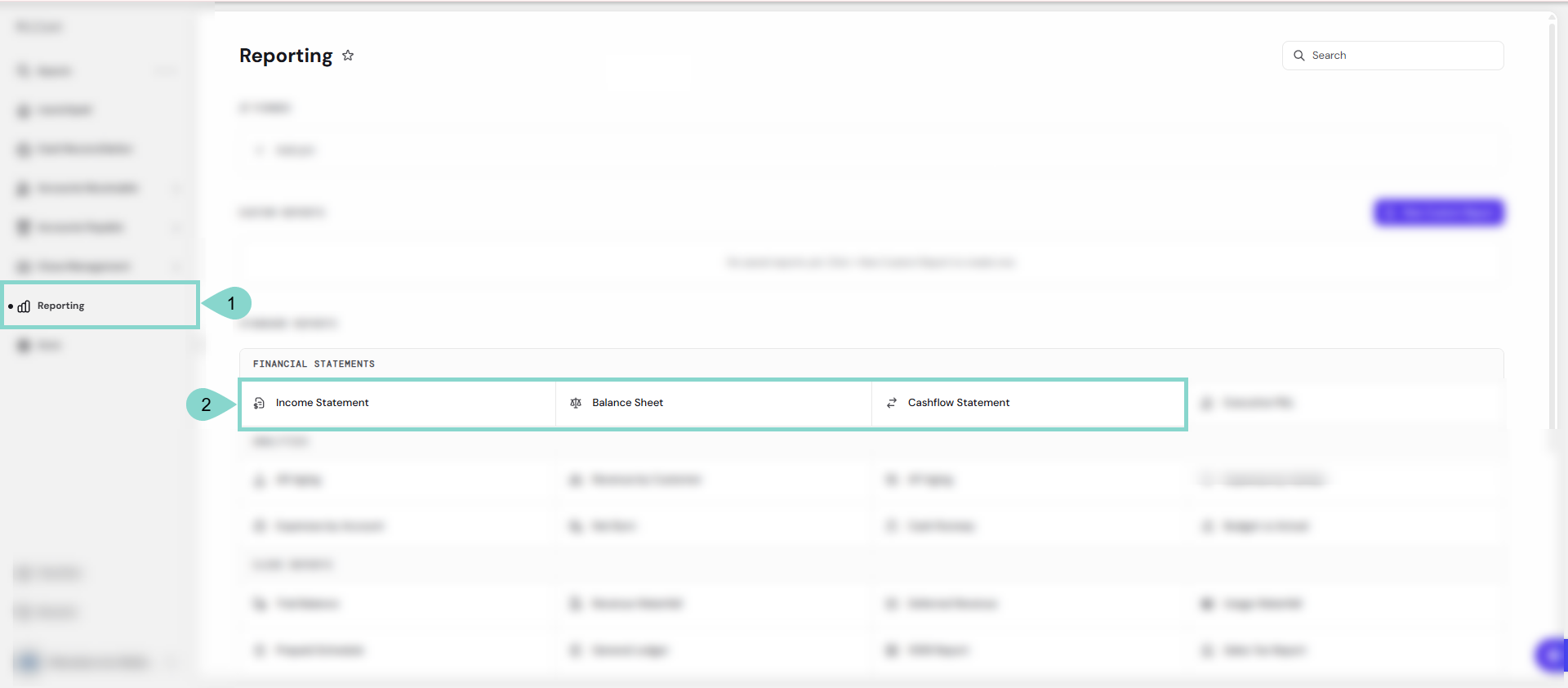
1. Click **Reporting** in the left sidebar.
2. Open the **Income Statement**, **Balance Sheet**, or **Cashflow Statement**.
3. Click the **Subsidiary** filter.
4. Select the group listed under **All reporting groups**.
{% hint style="info" %} **Note:**
A reporting group does not run elimination entries, the adjustments that normally cancel out transactions between related entities so a consolidated report does not count them twice. Since a group's members do not necessarily share a real parent, Rillet has no hierarchy to eliminate through, so any activity between them stays in the totals on both sides. Treat a reporting group as a side-by-side or segmented view of your subsidiaries, not a replacement for a true consolidated report.
{% endhint %}
The **Income Statement** or **Balance Sheet** reruns scoped to only that group's member subsidiaries, in any currency shared across them, including the currency of the entity they roll up into, and broken down further by department, location, or another custom field, the same as described in [**Customize the Income Statement**](/EjmEP4KZ9BVp9j2ho4Mh/reporting/financial-statements/customize-the-income-statement.md) or [**Customize the Balance Sheet**](/EjmEP4KZ9BVp9j2ho4Mh/reporting/financial-statements/customize-the-balance-sheet.md).
The **Cashflow Statement** also reruns scoped to that group's member subsidiaries, with the group's name shown in a **Reporting Group** filter in place of the **Subsidiary** filter.
### Manage a Reporting Group
Take these steps to edit, review, or delete a reporting group:
1. Click the **three-dot icon** next to the group.
2. Select **Edit**, **Audit history**, or **Delete**.
The group no longer appears as a filter option on your reports.
### See Also
To learn more about reporting in **Rillet**, review these articles:
* [**Customize the Income Statement**](/EjmEP4KZ9BVp9j2ho4Mh/reporting/financial-statements/customize-the-income-statement.md)
* [**Customize the Balance Sheet**](/EjmEP4KZ9BVp9j2ho4Mh/reporting/financial-statements/customize-the-balance-sheet.md)
* [**Understand the Cashflow Statement**](/EjmEP4KZ9BVp9j2ho4Mh/reporting/financial-statements/understand-the-cashflow-statement.md)
* [**Build a Custom Report**](/EjmEP4KZ9BVp9j2ho4Mh/settings-and-config/custom-fields/viewing-fields-in-reporting/build-a-custom-report.md)
* [**Multi-Book Accounting (Adjustment Only)**](/EjmEP4KZ9BVp9j2ho4Mh/reporting/multi-book-accounting-adjustment-only.md)
---
# Agent Instructions
This documentation is published with GitBook. GitBook is the documentation platform designed so that both humans and AI agents can read, navigate, and reason over technical content effectively. Learn more at gitbook.com.
## Querying This Documentation
If you need additional information that is not directly available in this page, you can query the documentation dynamically by asking a question.
Perform an HTTP GET request on the following URL with the `ask` and `goal` query parameters:
```
GET https://docs.rillet.com/EjmEP4KZ9BVp9j2ho4Mh/reporting/create-and-use-reporting-groups.md?ask=&goal=
```
`ask` is the immediate question: it should be specific, self-contained, and written in natural language.
`goal` is what the user is ultimately trying to achieve, the reason they need the answer. Sharing it helps GitBook give you a better, more relevant answer. A goal is most helpful when it describes the outcome the user wants rather than restating the question. For example, with `ask=how do I create an API token`, a goal like `build a script that syncs our docs to a CMS` lets GitBook tailor the answer to that use case.
The response will contain a direct answer to the question and relevant excerpts and sources from the documentation.
Use this mechanism when the answer is not explicitly present in the current page, you need clarification or additional context, or you want to retrieve related documentation sections.